> ## Documentation Index
> Fetch the complete documentation index at: https://auth0.com/llms.txt
> Use this file to discover all available pages before exploring further.
> Describes how to use the Vault of Forms for Actions.
# Vaults
The vault lets you securely store secrets or common settings (for example: API keys, access tokens, refresh tokens) to authenticate requests with external services or integrations as vault connections.
* There are connections that require the user to provide credentials (for example, with an Auth0 with a machine-to-machine (M2M) application, you generate an access token with an expiration time and a refresh token). The connection stores both tokens and generates a new access token before it expires.
* There are external services that require authorizing scopes to generate API credentials. If you change the scopes, update the connection to those services to avoid connection issues.
* When a connection is added, it is ready to use in your flows. Any updates to an existing connection will propagate automatically.
## Create and modify vault connections
Create and modify vault connections from the vault page or from the flow editor when an action requires credentials.
### Create vault connections from the vault page
Add a vault connection from the vault page by following these steps:
1. Open the Form editor by selecting **Auth0 Dashboard > Actions > Forms.**
2. From the top left corner, select the tenant menu, and then **Vault** to open the vault page.
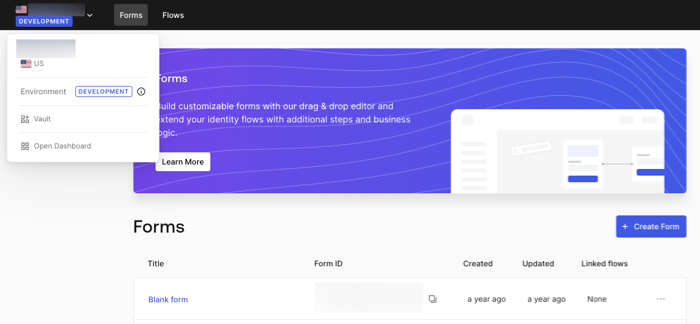 3. Select **Add Vault Connection**.
4. Select the desired action and **Continue**.
5. Add a vault **Connection name** and select **Continue**.
6. Enter the credentials.
If you don't have the specific credentials, you can select **Create an empty connection** and add the credentials later. Empty connections have an orange icon indicating missing credentials.
7. select **Add Vault Connection**.
### Create vault connections from the flow editor
Add a vault connection from a flow action, for example: Twilio by following these steps:
1. Open the Flow editor by selecting **Auth0 Dashboard > Actions > Forms > Flows**
2. Select a flow and add a **Send SMS with Twilio** action.
3. From the **Vault connection** setting of the action, select the **+** Icon.
3. Select **Add Vault Connection**.
4. Select the desired action and **Continue**.
5. Add a vault **Connection name** and select **Continue**.
6. Enter the credentials.
If you don't have the specific credentials, you can select **Create an empty connection** and add the credentials later. Empty connections have an orange icon indicating missing credentials.
7. select **Add Vault Connection**.
### Create vault connections from the flow editor
Add a vault connection from a flow action, for example: Twilio by following these steps:
1. Open the Flow editor by selecting **Auth0 Dashboard > Actions > Forms > Flows**
2. Select a flow and add a **Send SMS with Twilio** action.
3. From the **Vault connection** setting of the action, select the **+** Icon.
 4. Add a vault **Connection name** and select **Continue**.
5. Enter the credentials.
If you don't have the specific credentials, you can select **Create an empty connection** and add the credentials later. Empty connections have an orange icon indicating missing credentials.
4. Add a vault **Connection name** and select **Continue**.
5. Enter the credentials.
If you don't have the specific credentials, you can select **Create an empty connection** and add the credentials later. Empty connections have an orange icon indicating missing credentials.
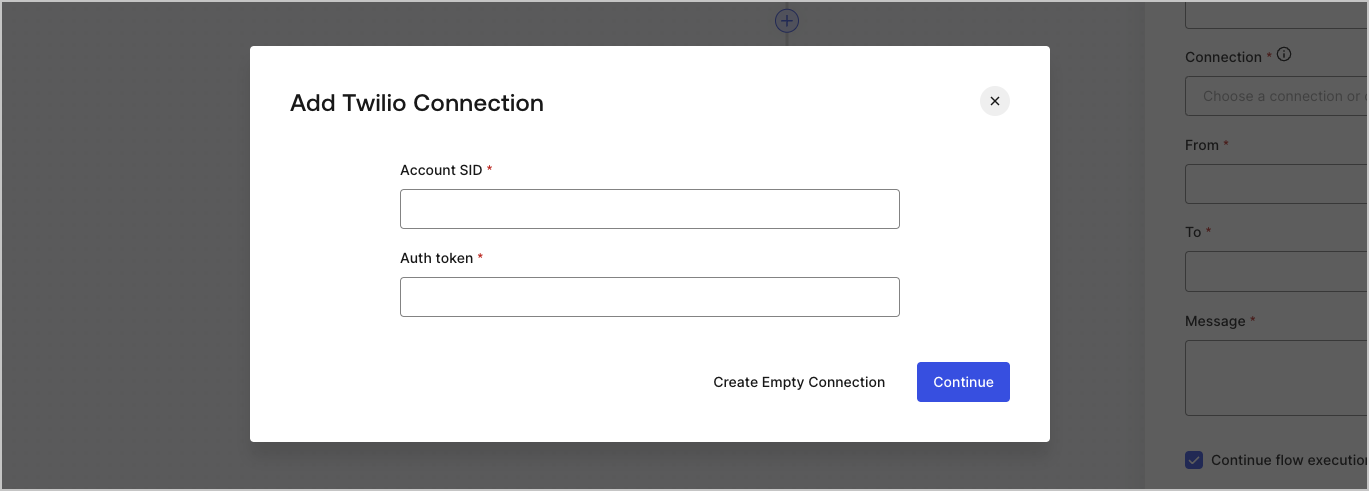 6. Select **Add Vault Connection.**